

AI agents
Plan and publish from the AI you already use
Ask your agent for a week of posts in your voice. Skryvo shows each one and waits for your go-ahead.





Channels
One post, written for every channel
11 channels publish today and 5 are in platform review. Skryvo reads each post back to confirm it went live.
Social media calendar template
A free Google Sheets calendar for planning posts across LinkedIn, X, Instagram, Bluesky and five more networks. Each row checks the post against that network's character limit, and a month view shows what goes out when.
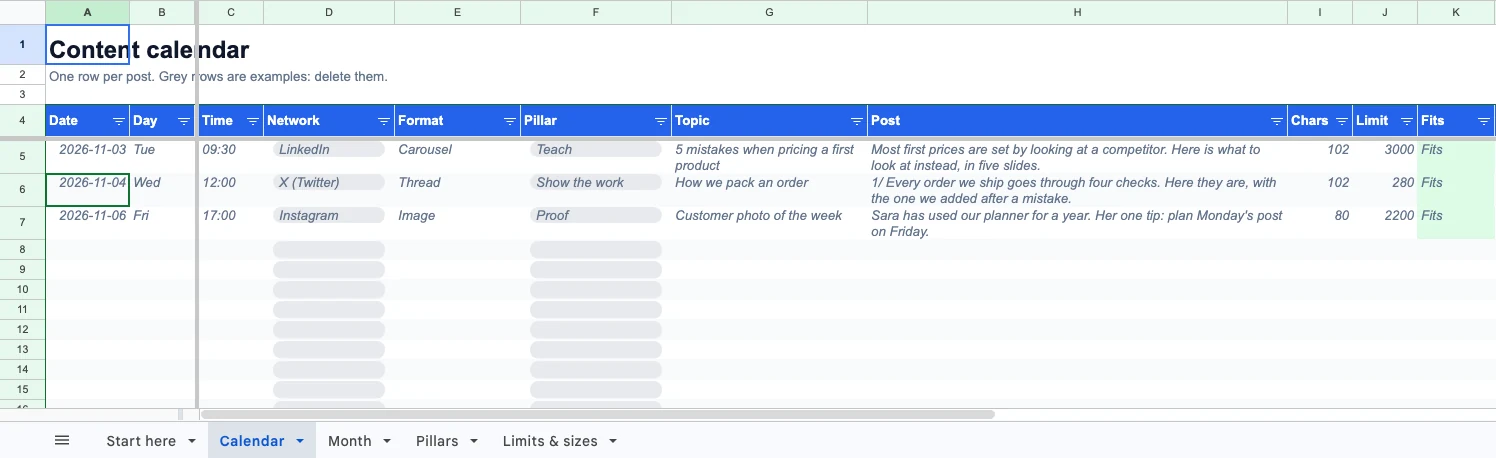
The Calendar tab. Open the sheet to look before you copy it.
What is in the template?
| Tab | What it does |
|---|---|
| Calendar | One row per post: date, time, network, format, pillar, topic, the post itself, link, image, status, owner and result. Day, character count, limit and fit fill in by themselves. |
| Month | Type the first day of any month and every planned post appears on a Monday-to-Sunday grid, as "Network: topic". |
| Pillars | Five content pillars with a target share each. The planned share counts your calendar rows, so you can see when one pillar crowds out the rest. |
| Limits & sizes | Character limits for nine networks and image sizes for LinkedIn and X, each linked to the platform's own documentation. |
| Start here | Seven steps from copying the sheet to your first scheduled post. |
How do you make a social media content calendar in Google Sheets?
-
Pick the networks you can post on every week, and the days and times you will post. Our guides on when to post on LinkedIn and on X compare three studies each.
-
Name three to five content pillars: the subjects you post about again and again. Give each a share of your posts so one subject does not take over.
-
Fill a month of rows: date, network, pillar and topic first. Write the posts later, in batches.
-
Write each post for its network. A LinkedIn post holds 3,000 characters and an X post 280, so one caption pasted everywhere fits nowhere. The Limits tab lists nine networks, and our guide to social media character limits explains how each one counts.
-
Move each row from Idea to Drafting, Ready, Scheduled and Posted. Rows marked Ready are the ones to schedule next.
-
After a week, note what each post did in the Result column, and plan the next month from what worked.
Why does the template check character limits?
Because a post over the limit is cut off or refused when it goes out. The Fits column compares each post's length with the limit for its network and turns red with the number of characters to cut. X counts by weight, with links as 23 and emoji as 2, so check X posts in our Twitter character counter before you schedule them.
Social media calendar template: questions
Is there a free social media calendar template for Google Sheets?
Yes. This one is free, needs no sign-up and no email: make a copy in Google Sheets and it is yours. An Excel version is on the same page.
Does it work in Excel?
Yes. Download the .xlsx file. The month view needs Excel 2021 or Microsoft 365, which have the FILTER and TEXTJOIN functions.
Can I schedule posts from the spreadsheet?
No. A spreadsheet plans posts but cannot publish them. Copy each post into your scheduler, or use Skryvo, which writes posts in your brand's voice and publishes them on schedule to LinkedIn, X, Bluesky and more.
Can my team share one calendar?
Yes. Make a copy, then use Share in Google Sheets to invite your team. The Owner column says who writes each post.
More free tools: the post preview and thread maker and the LinkedIn text formatter.
Plan it here, publish it with Skryvo
Skryvo writes each post in your brand's voice, fits it to the network and publishes it on schedule, from the app or from your AI agent.
- Free plan
- No card needed
- Cancel any time